Connect your AI assistant to your Insyder workspaces. The native MCP provides all 51 public API operations as tools: read leads and analytics, update lead details, manage products, record purchases, and create exports, within the permissions you approve.
This is the MCP for working with your data. The separate Documentation MCP searches these guides and explains the API; it cannot access or change your workspace data. You can connect both, using the names Insyder Native and Insyder API Docs to tell them apart.
| Native Insyder MCP | Documentation MCP | |
|---|---|---|
| Use it to | Read and act on your Insyder data | Learn how to use Insyder's API and MCP |
| Server URL | https://api.insyder.io/mcp | https://docs.insyder.io/mcp |
| Authentication | OAuth sign-in; API keys also supported | None; public documentation |
| Workspace access | Only the workspace and actions you approve | None |
| Example request | “Show my top leads this week.” | “Which filters does the leads endpoint accept?” |
You need an Insyder account with access to a workspace, and permission to add custom connectors in your assistant. Claude's hosted connector and ChatGPT in a browser use OAuth sign-in. The ChatGPT desktop Add MCP server form uses a personal Insyder API key. Neither setup needs a local bridge, Node.js installation, or tunnel.
Use this server URL:
https://api.insyder.io/mcpFor OAuth, sign in with your existing Insyder account when prompted, choose a workspace, and select Allow access. Read-only access is selected by default. Enable the additional requested actions only if you want the assistant to make changes or create exports. Your assistant receives the data returned by the tools you permit.
Use Claude's hosted custom connector. You can add it through your Claude account and use it in Claude Desktop.
- Open Claude and go to Customize > Connectors > Add custom connector.
- Name it Insyder Native, enter
https://api.insyder.io/mcp, and select Continue. - Keep the detected Sign in now and Use Claude’s published identity settings, then select Add. On the connector page, select Connect. Sign in to Insyder, choose the workspace and permissions, and select Allow access. No client ID or secret is needed.
- Enable Insyder Native in your conversation's + > Connectors menu. Ask “Use Insyder Native to list my accessible workspaces.”
For Team and Enterprise, an owner first adds the URL under Organization settings > Connectors > Add > Custom > Web. Each member then selects Connect to approve their own Insyder access. See Claude's custom connector instructions.
If you previously used claude_desktop_config.json, disable that local Insyder entry after verifying this connection so duplicate tools do not appear. The optional API-key bridge remains available for local-only clients.
Follow these steps if your Plugins page has Plugins / Apps / MCPs / Skills tabs. This connection uses an API key. To connect by signing in to Insyder instead, follow ChatGPT in a browser below.
Create an Insyder key. In Insyder, open Preferences > API access > Create a key. Set Key name to
ChatGPT, choose Read only, and select the workspace you want to use. Select Save, then Copy. The full key is shown only once.Open the MCP form. In the ChatGPT desktop app, go to Plugins. Click Add at the top right, then Add MCP server.
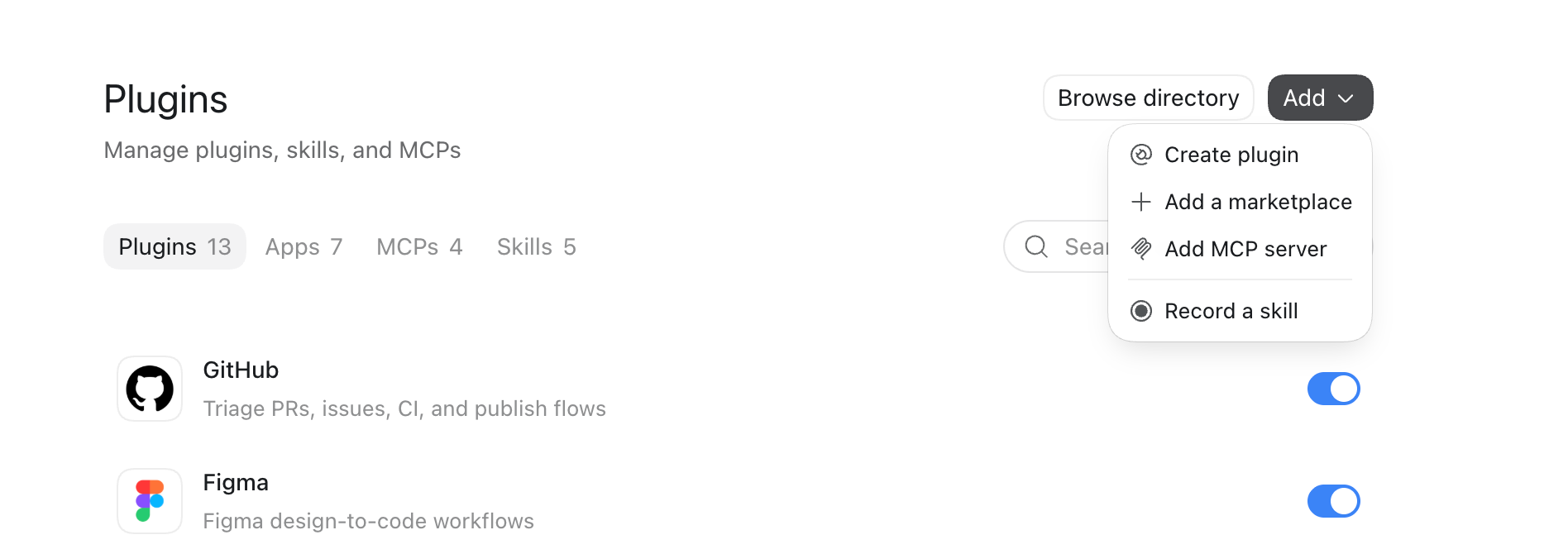
Fill in the connection. On Connect to a custom MCP, enter Insyder Native in Name, then select Streamable HTTP next to Type. This replaces Command to launch with the URL field. Fill the form exactly as follows:
Field What to enter Name Insyder NativeType Streamable HTTP URL https://api.insyder.io/mcpBearer token env var Leave empty Headers — Key X-API-KeyHeaders — Value Paste the full Insyder key you copied, starting with insyder_live_Headers from environment variables Leave empty Paste the key only into Headers > Value, without adding
Bearerbefore it. Keep it out of chat messages.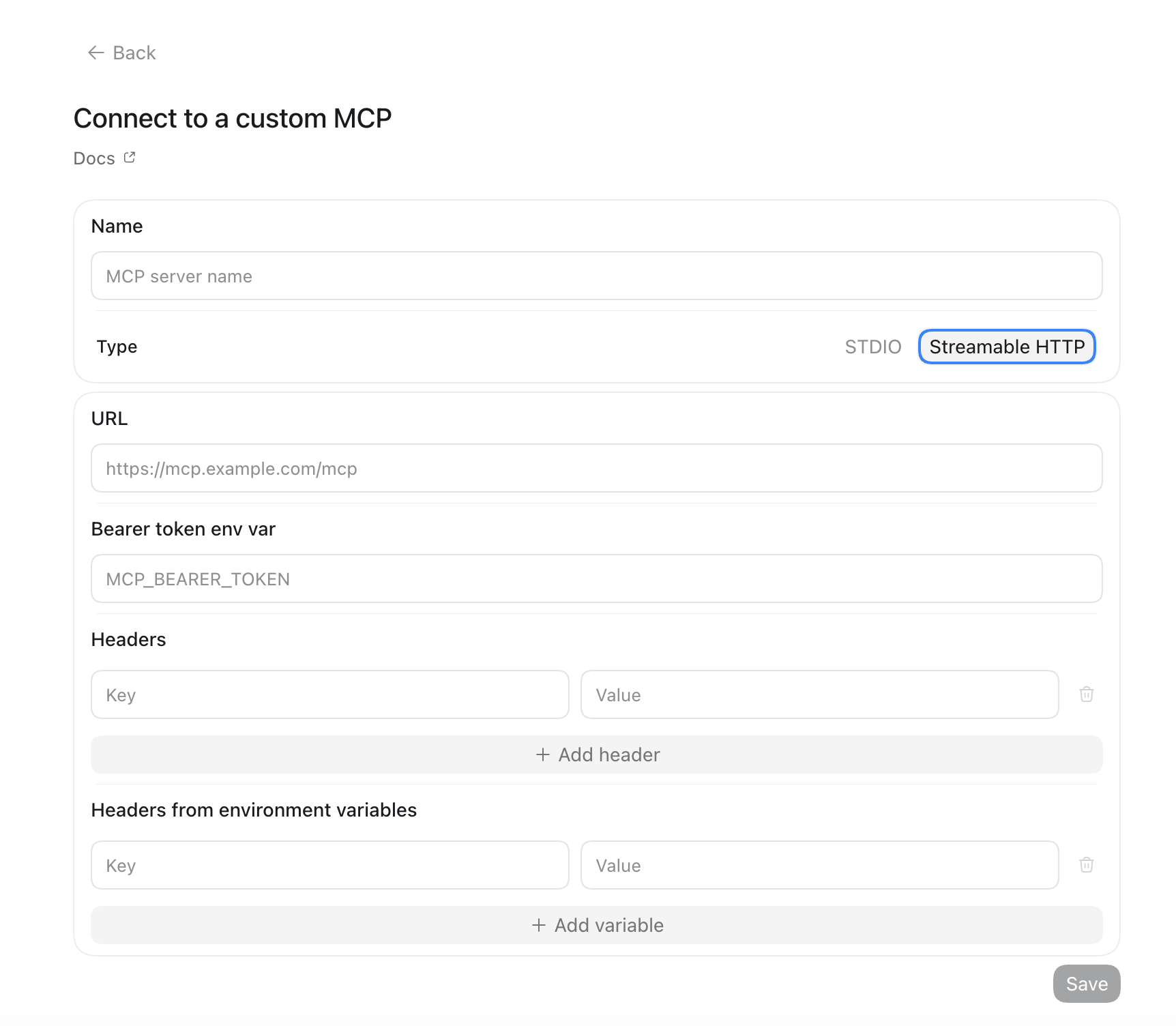
Save and restart. Click Save at the bottom right, then Restart when ChatGPT offers it. In Plugins > MCPs, keep Insyder Native enabled.
Try it. Start a new conversation and send:
Use Insyder Native to list my accessible workspaces.
ChatGPT should return the workspace you selected for the key. You can now ask it to read leads, products, or analytics. To allow changes or exports later, edit the key's permissions in Insyder > Preferences > API access.
Insyder currently supports OAuth for hosted ChatGPT connections; the desktop MCP connection above uses the X-API-Key header. For more about the desktop form, see OpenAI's desktop MCP guide.
Use this separate setup at chatgpt.com to connect with your Insyder sign-in.
- Open Settings > Security and login and turn on Developer mode.
- Open ChatGPT Plugins and select + to add an MCP connection.
- Enter Name:
Insyder Native, Description:Read and manage my Insyder workspace data, and the public URLhttps://api.insyder.io/mcpunder Connection. If authentication options appear, select OAuth and leave the optional client ID and secret empty. - Create the connection. Sign in to Insyder, choose a workspace, review the permissions, and select Allow access.
- Start a new conversation, add Insyder Native from the tools menu, and ask “Use Insyder Native to list my accessible workspaces.”
If Developer mode or + is unavailable, your account or workspace policy may restrict custom connections. A workspace administrator may need to enable them. See OpenAI's browser MCP instructions.
Clients with custom HTTP headers can use a personal API key:
| Setting | Value |
|---|---|
| Name | Insyder Native |
| Transport | Streamable HTTP |
| Server URL | https://api.insyder.io/mcp |
| Header name | X-API-Key |
| Header value | Your personal Insyder API key |
Create a key under Insyder > Preferences > API access, select its workspaces and permissions, and save it when displayed. Use the client's private secret storage for the header. Never paste credentials into a chat message or put them in the server URL. See API-key authentication.
OAuth client onboarding currently supports hosted ChatGPT and Claude. Other clients should use the API-key connection unless their OAuth integration has been enabled by Insyder. Send only one authentication method per request.
The native URL ends in /mcp, not /v1/mcp or /sse. Authentication applies to tool discovery and calls. The server is stateless and supports legacy MCP clients and the 2026-07-28 protocol; opening the URL in a browser is not a connection test.
For a client that only accepts local mcpServers configuration, install Node.js LTS and use the mcp-remote bridge. This optional setup runs on your computer. The Claude and ChatGPT setups above do not use it.
{
  "mcpServers": {
    "insyder-native": {
      "command": "npx",
      "args": [
        "-y",
        "mcp-remote@0.13.5",
        "https://api.insyder.io/mcp",
        "--transport",
        "http-only",
        "--silent",
        "--header",
        "X-API-Key:${INSYDER_API_KEY}"
      ],
      "env": {
        "INSYDER_API_KEY": "YOUR_INSYDER_API_KEY"
      }
    }
  }
}
Replace YOUR_INSYDER_API_KEY with your saved key in the private configuration file; leave ${INSYDER_API_KEY} unchanged. Fully restart the client. Use an absolute npx path if it is not on the client's PATH. Closing the local bridge stops this connection.
Try these requests after listing your workspaces:
- “For workspace @mybrand, show 20 uncontacted leads with a score of at least 80.”
- “Summarize the revenue and lead funnel for @mybrand this month.”
- “Show the products in @mybrand, including archived products.”
- “Update this lead's notes to ‘Requested a callback tomorrow’.”
- “Prepare an export of the leads in @mybrand and retrieve the download link when it is ready.”
The last two requests require the corresponding write/export scopes. The assistant should use the account_id returned by listAccounts; a workspace's username is not its API identifier.
| Action | Required scope | Additional rule |
|---|---|---|
| Read data and analytics | data:read | Workspace must be approved on the connection or key |
| Edit user-managed lead fields | leads:write | Status, email, phone, and notes only |
| Create, edit, or archive products | products:write | User must be OWNER or ADMIN in the workspace |
| Record purchases | purchases:write | Purchases are append-only |
| Create exports | exports:create and data:read | Download links expire |
The catalogue lists every tool, including tools your connection cannot execute. The API checks permissions on each call. OAuth disconnection, key revocation, expiry, workspace access, and membership changes are checked on each request. MCP uses the same API limits, including the shared per-user rate limit; it does not grant extra access.
Imported data and system-derived facts remain read-only. Neither MCP adds provider credentials, connection management, synchronization controls, analysis triggers, or other operations absent from the public API.
Each tool name matches an operationId in the API reference, with the same parameters and responses.
| Capability | Tools |
|---|---|
| Workspaces | listAccounts, getAccount |
| Leads | listLeads, getLead, updateLead, listLeadInteractions, getLeadActivity, listLeadStatusHistory, listLeadScoreHistory, listLeadPurchases, listLeadIclosedCalls |
| Content | listContent, getContent, listContentInteractions, listContentLeads, listContentSnapshots |
| Interactions | listInteractions |
| Products | listProducts, getProduct, createProduct, updateProduct, archiveProduct |
| Purchases | listPurchases, getPurchase, createPurchase |
| History | listRuns, listAccountSnapshots, listAllContentSnapshots, listHighlights, getHighlight, listHighlightItems |
| Imported results | listIclosedCalls, listCompetitors, getCompetitor, listCompetitorInteractions, getCompetitorContentPerformance, listCompetitorReactiveProfiles |
| Analytics | getAnalyticsOverview, getLeadGrowthAnalytics, getAudienceSeries, getAudienceSegments, getFunnelAnalytics, getRevenueAnalytics, getContentPerformanceAnalytics, getCommentBehaviorAnalytics, getStoryPerformanceAnalytics, getTeamConversionAnalytics |
| Exports | createExport, getExport, deleteExport |
Most assistants build tool arguments for you. For custom integrations, API path and query parameters become top-level arguments, JSON payloads go inside body, and Idempotency-Key becomes idempotency_key. Array filters stay JSON arrays.
Example arguments for listLeads:
{
  "account_id": "WORKSPACE_ID",
  "status": ["uncontacted"],
  "min_score": 80,
  "limit": 20
}
Example arguments for updateLead:
{
  "account_id": "WORKSPACE_ID",
  "lead_id": "LEAD_ID",
  "body": { "notes": "Requested a callback tomorrow" }
}
Tools return both JSON text and structured content containing the API's status, operational headers, and unchanged response body:
{
  "status": 200,
  "headers": { "x-request-id": "REQUEST_ID" },
  "body": {
    "data": [],
    "meta": { "request_id": "REQUEST_ID", "has_more": false, "next_cursor": null }
  }
}- Pagination: pass
body.meta.next_cursorascursor, keeping the same filters. Collections default to 50 items, with a maximum of 200; smaller pages can be easier for assistants to handle. - Writes:
createProduct,createPurchase, andcreateExportrequireidempotency_key. If a call's outcome is uncertain, retry with the same key and identical body. The API retains idempotency records for 24 hours. - Exports: call
createExport, then pollgetExportuntil ready. Use the returned temporary download links before they expire.deleteExportcancels/deletes an export. - Errors: API failures set
isError: trueand preserve the API's problem response. Invalid tool arguments are rejected before dispatch. A successful deletion may return status204withbody: null.
| Symptom | What to check |
|---|---|
| Assistant searches docs but cannot list workspaces | You connected Insyder API Docs. Add Insyder Native using this guide and select it in the conversation. |
| ChatGPT desktop shows Command to launch instead of URL | Select Streamable HTTP next to Type. |
ChatGPT desktop asks to authenticate or returns 401 | Check Headers: Key must be X-API-Key and Value must contain your full, active Insyder key. Leave Bearer token env var empty, save, and restart ChatGPT. |
| OAuth connection fails before sign-in | Use https://api.insyder.io/mcp, select OAuth, and leave client ID/secret empty. Refresh or recreate an older connection to fetch current authentication metadata. |
| “Connection interrupted” | Restart Connect from your assistant. Allow cookies in the sign-in browser, finish the flow promptly, and use an Insyder account with a verified email and workspace access. |
| Sign-in appears despite an open Insyder app | Sign in with the same Insyder account. The browser's connector-login session is separate from the app's existing session. |
Connection expired or 401 | Reconnect the assistant. OAuth connections expire after 90 days or when disconnected. For API-key clients, check key expiry, revocation, and the X-API-Key header. |
403 when calling a tool | Check the approved scopes and your workspace role. Reconnect and approve the additional actions if you need them. |
Workspace/resource returns 404 | Check account_id, the selected workspace, and current membership. Inaccessible resources also return 404. |
| Wrong workspace | Disconnect and reconnect, selecting the workspace you want. Each OAuth connection approves one workspace. |
Native endpoint returns 404 or gateway “Missing Authentication Token” | Verify the API host and /mcp path. Contact Insyder support if the native backend is unavailable. |
429 | Reduce concurrent calls and follow retry-after when present. REST and MCP share a per-user data quota. If connecting another assistant fails, disconnect an unused one; up to 20 OAuth connections can be active per user. |
| No custom-connector/app controls | Check your assistant plan and organization policy. An administrator may need to enable or add the connector first. |
| Optional local bridge cannot start | Check Node.js and the npx executable path, then fully restart the client. |
| Tool output is too large | Ask for fewer records or a narrower date range, then paginate. Use exports for bulk data. |
In Insyder > Preferences > API access > Connected assistants, select Disconnect next to the connection. This immediately blocks its access to Insyder. You can also remove the connector in Claude or ChatGPT. Other connections and your Insyder login remain active.
To change the workspace or permissions, disconnect and connect again. If you use an API-key client, revoke or edit its key under API access, and update the private client configuration after rotating it.